4
|
Creating a Web Page with
Dreamweaver
|
|
|
Prep
your materials |
|
|
Create a new folder
[lastnamexx] inside your folder (inside the Techno .09 folder) |
|
|
Place your portrait
image (cropped to 240 x 180 or 180 x 240 and saved as a .jpg) into that
folder |
|
|
Locate and open
your text/bio, you will copy and paste this text into your new web page |
|
|
|
|
Dreamweaver |
|
|
Open a new Dreamweaver
document |
|
|
Choose Modify ->
Page Properties, name the page and save in your newest folder as [lastnamexx.html] |
|
|
Choose Properties
and Objects from the Window menu to reveal these palettes if they are not
visible. |
|
|
Type your name at
the top of the page and select the text. |
|
|
On the Properties palette,
choose Heading 3 from the Format pop-up list.

|
|
|
On the Objects palette, click
the Insert Table icon.
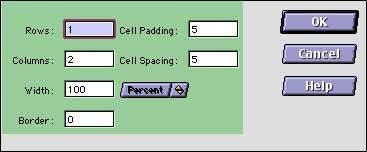
Create a table with 1 row, 2 columns, Width=100%, Cell padding=5, Cell
spacing=5
|
|
|
Place your cursor
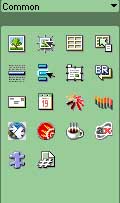
in the first column, on the Objects palette, click the Insert Image icon
and choose your .jpeg image from your new folder.
|
 |
|
|
From your text/bio
document, select your text and copy (Edit -> Copy) Place your cursor in
the second column of your web page document, and Paste (Edit -> Paste) |
|
|
Save your document
and deposit a copy of your new folder in the Drop folder on Yorba |
